
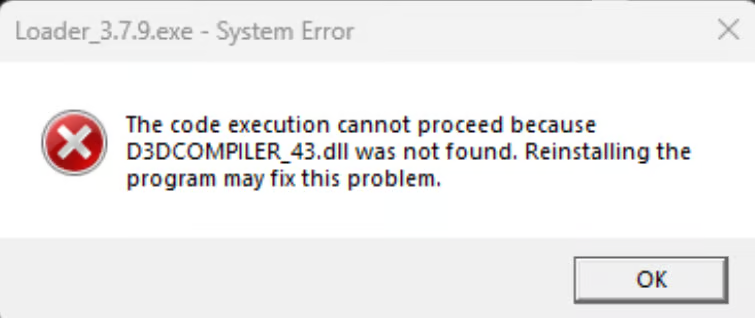
Missing DirectX Dependency: "The code execution cannot proceed because D3DCOMPILER_43.dll was not found." This error indicates that your Windows installation is missing the legacy DirectX 9/11 runtime libraries required by the loader and graphical overlays.
1. Error Overview #
When starting the loader, Windows displays a System Error dialog:
2. Install DirectX End-User Runtimes (Recommended) #
Clean Windows 10 and Windows 11 installations include DirectX 12 out-of-the-box, but omit the legacy DirectX 9/11 compiler libraries (D3DCOMPILER_43.dll). Installing the official Microsoft runtime package solves this permanently:
- Download the official installer: Microsoft DirectX End-User Runtime Web Installer (dxwebsetup.exe) ↗
- Run
dxwebsetup.exeas Administrator. - Uncheck the "Install Bing Bar" checkbox if prompted.
- Complete the setup wizard and let it install all missing legacy libraries.
Alternatively, you can download and launch the installer in one step via PowerShell:
POWERSHELL DIRECTX INSTALL
Invoke-WebRequest -Uri "https://download.microsoft.com/download/1/7/1/1718CCC4-6315-4D8E-9543-8E28A4E18C4C/dxwebsetup.exe" -OutFile "$env:TEMP\dxwebsetup.exe"
Start-Process "$env:TEMP\dxwebsetup.exe" -Wait
3. Install Visual C++ Redistributables (x86 & x64) #
Loaders also require the Visual C++ runtime redistributables. Ensure both the 32-bit (x86) and 64-bit (x64) libraries are installed:
4. Manual Fallback: Place DLL in Loader Folder #
If the installer reports that "An equivalent or newer version of DirectX has been detected":
- Place a verified copy of
D3DCOMPILER_43.dlldirectly into the same folder where yourLoader.exeis located. - Windows will search the local application directory first, satisfying the dependency immediately without modifying system folders.
Verification: Once DirectX is installed, launch your loader again. The error dialog will no longer appear and the application will initialize normally.