
Manual Connection Notice: In Gen Rockstar LINKED, clicking the generator button produces account credentials along with a 2FA code. You must enter these details into the Rockstar Games Launcher manually to complete the sign-in.
1. Generate Account in RXMenu #
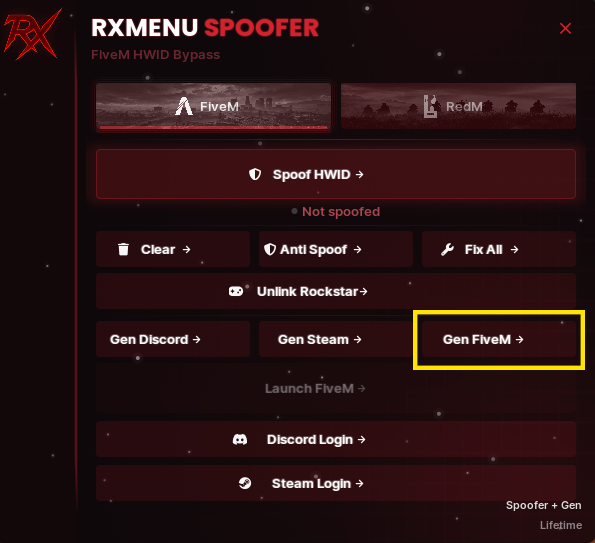
Open your RXMENU SPOOFER panel. Under the account generators section, click on the Gen FiveM button:
2. Retrieve Credentials & 2FA Code #
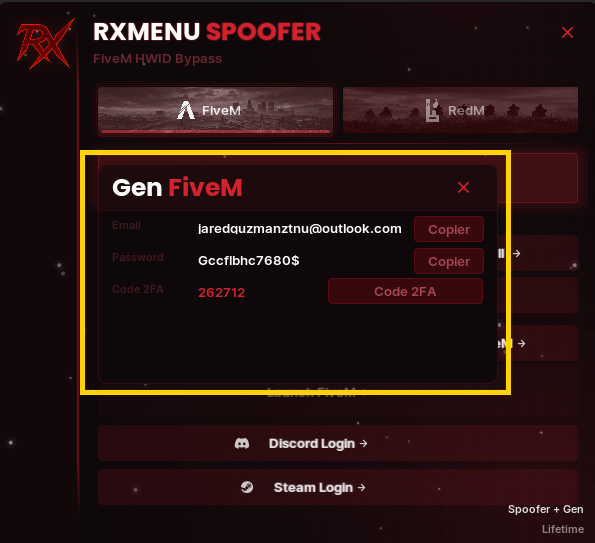
A modal popup titled Gen FiveM will appear displaying your generated details:
- Email: Click Copier to copy the email address.
- Password: Click Copier to copy the password.
- Code 2FA: Note the 6-digit two-factor authentication code (e.g.
262712).
3. Open Rockstar Games Launcher #
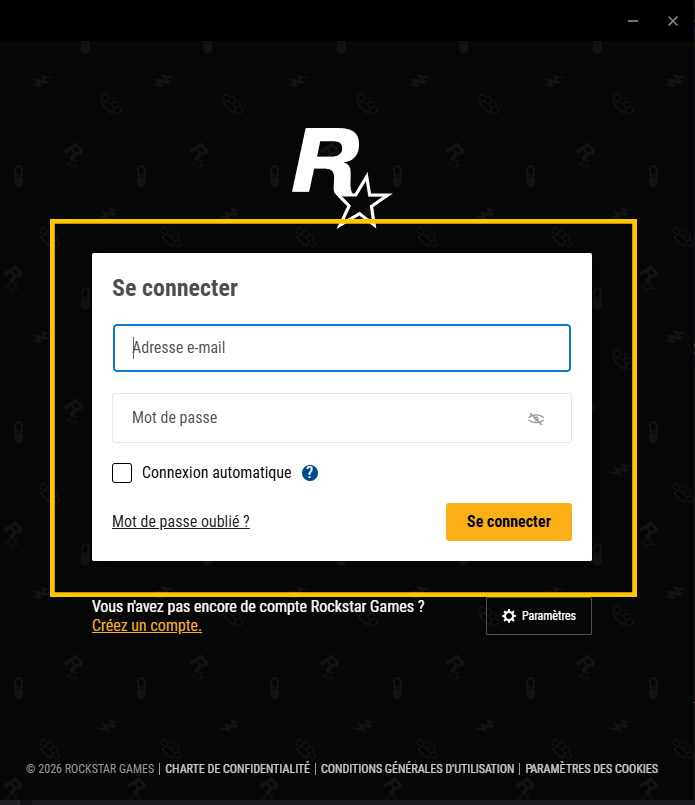
Launch the Rockstar Games Launcher on your PC. If an old account is currently logged in, make sure to sign out completely so you reach the clean sign-in screen:
4. Enter Credentials & Enable Auto-Login #
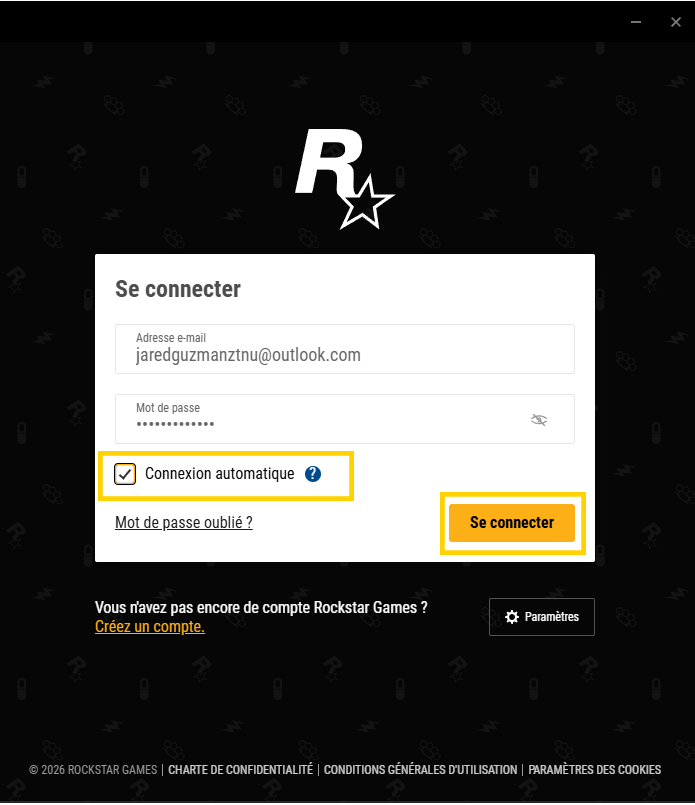
Fill in the sign-in form using the details from step 2:
- Paste the generated Email address into the first field.
- Paste the Password into the second field.
- Check the Auto-login / Remember me (Connexion automatique) box.
- Click the yellow Sign In (Se connecter) button.
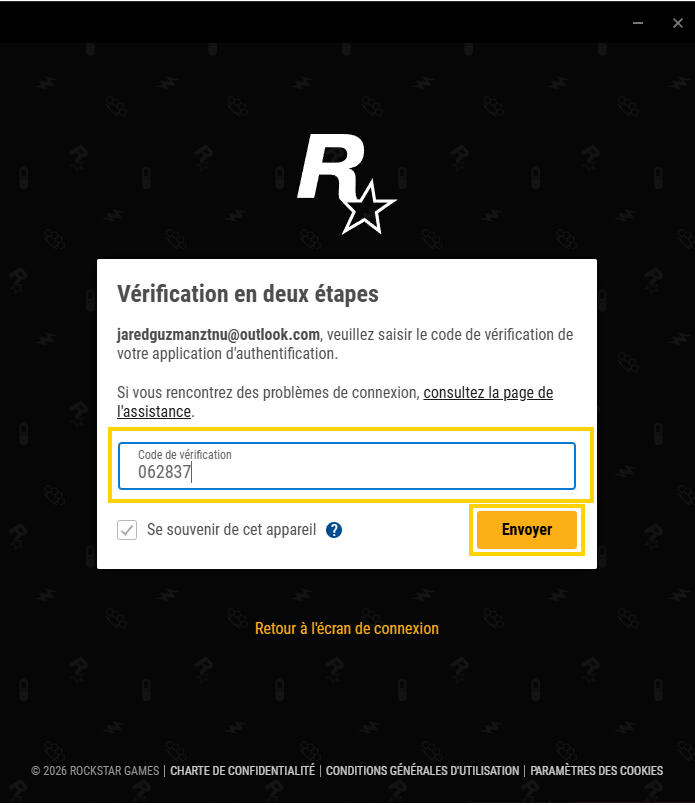
5. Enter Two-Step Verification (2FA) #
The launcher will prompt for Two-Step Verification (Vérification en deux étapes):
- Enter the 6-digit 2FA code generated by RXMenu into the verification code input.
- Check Remember this device (Se souvenir de cet appareil).
- Click the yellow Submit (Envoyer) button to finish logging in.
Success: Once verified, your Rockstar Games Launcher is authenticated with the newly linked account and ready for FiveM.