
1. Generate Discord Token #
Open RXMENU SPOOFER. Under the generators menu, click on the Gen Discord button:
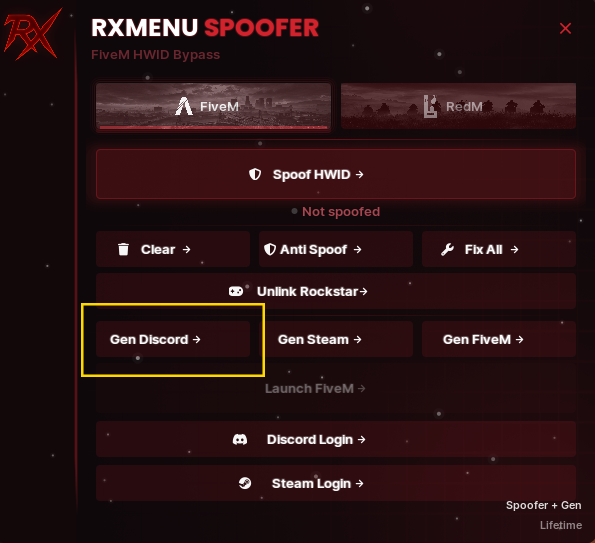
The Gen Discord modal will appear with your generated token. You can copy the token directly using Copier or connect in one click:
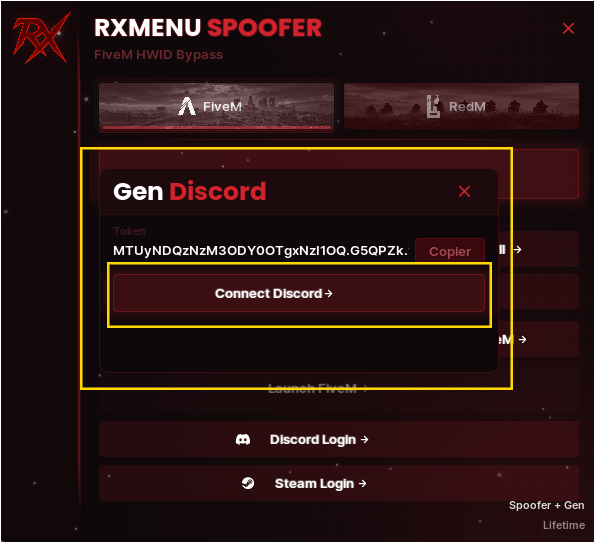
2. Choose Discord Client (Normal, PTB, Canary) #
RXMENU SPOOFER includes a dedicated Discord Login feature that supports all official Discord desktop editions. Click on the Discord Login → button in the spoofer menu:
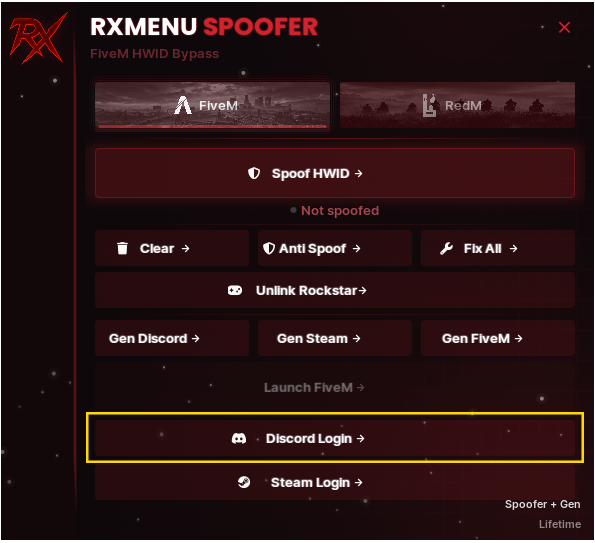
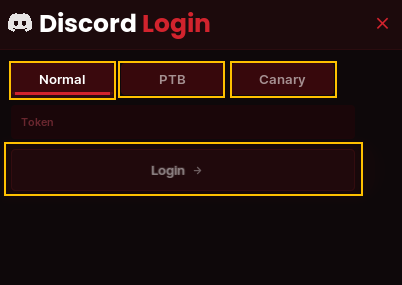
In the Discord Login popup, select your target Discord installation by clicking on the corresponding tab at the top:
-
Normal (Default): Standard desktop release (
Discord.exe). Use this if your primary Discord client operates normally without session conflicts. -
PTB (Public Test Build): Operates on an isolated build branch (
DiscordPTB.exe) with separate cache and process isolation. Recommended when standard Discord is rate-limited, stuck, or experiencing connection token conflicts. -
Canary: Bleeding-edge experimental branch (
DiscordCanary.exe). Allows running an independent tertiary client alongside Normal and PTB.
Login Steps:
- Click the tab matching your installed version: Normal, PTB, or Canary.
- Paste your generated token into the Token input field.
- Click Login →. The spoofer will automatically authenticate and establish the session inside your chosen Discord edition.
3. Official Discord Client Downloads #
If you experience rate-limits or token handshake blocks on standard Discord, install PTB or Canary from the official Discord links below:
- Discord Normal (Stable): Official Discord Stable for Windows ↗
- Discord PTB (Recommended Backup): Official Discord PTB for Windows ↗
- Discord Canary (Experimental): Official Discord Canary for Windows ↗
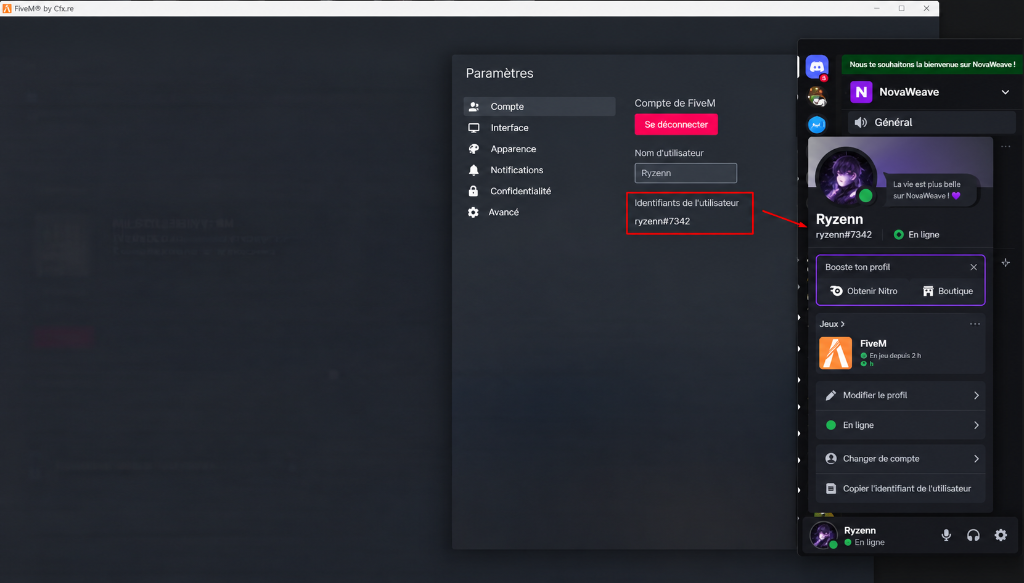
4. Verify Discord Link with FiveM #
Before joining any server, verify that FiveM properly detects and links your active Discord account:
- Keep your selected Discord client (Normal, PTB, or Canary) open in the background.
- Launch FiveM and click on the Settings icon (Paramètres).
- Under the Account tab (Compte), look at User Identifiers (Identifiants de l'utilisateur).
- Verify that your Discord tag (e.g.
ryzenn#7342) matches your logged-in Discord account profile. - Confirm that Discord displays FiveM as your active game status (En jeu / Playing).
status