
Critical Notice: If your previous Discord account is not unlinked, connecting a new account will fail. FiveM and game servers will detect the old linked Discord identifier, bypassing your spoof and resulting in an immediate ban.
1. Open Discord Settings > Connected Apps #
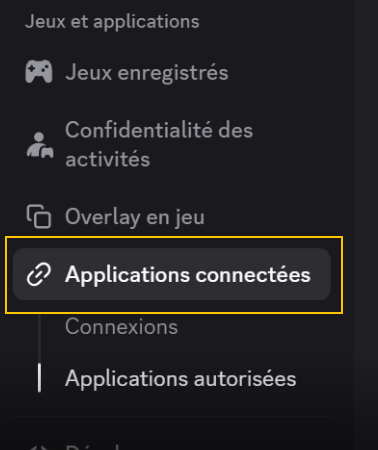
Open your old Discord account, click on the gear icon (User Settings at the bottom left), and in the left sidebar under Apps & Games, click on Connected Apps (or Authorized Apps):
2. Remove FiveM Authorization #
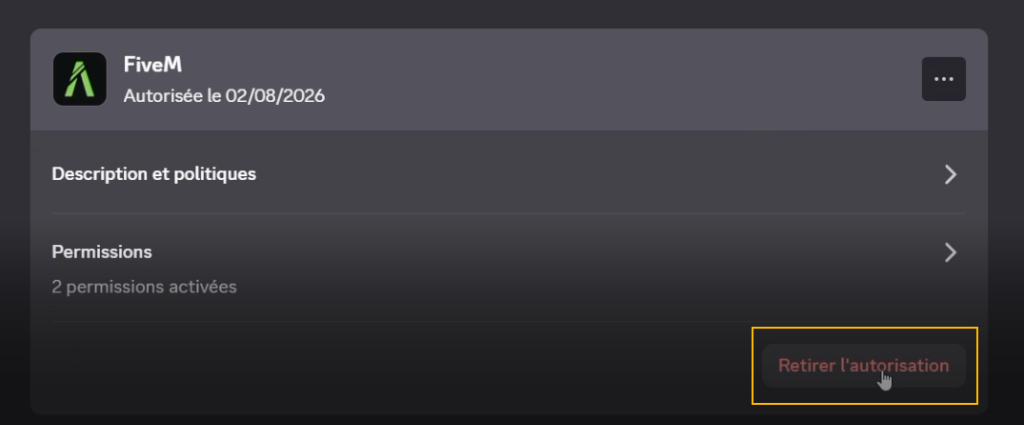
In the list of authorized applications, locate FiveM. Click on the Deauthorize button (Retirer l'autorisation) at the bottom right of the FiveM card:
3. Confirm Deauthorization #
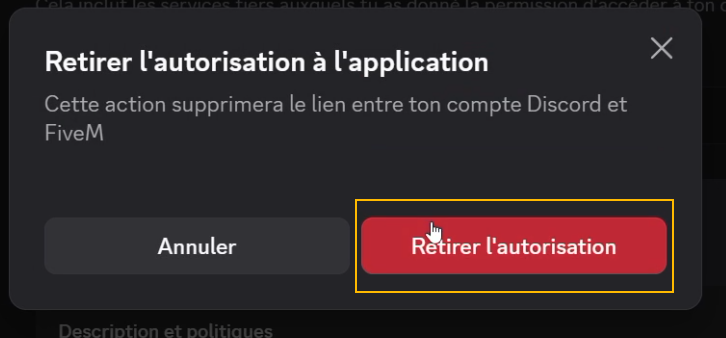
A confirmation modal will appear: "Deauthorize application - This action will remove the link between your Discord account and FiveM".
Click the red Deauthorize button (Retirer l'autorisation):
The old Discord account is now completely unlinked from FiveM. No residual session tokens or identifiers remain connected to your game client.
4. Link the NEW Discord Account to FiveM #
To link your new Discord account properly and ensure seamless detection, follow this exact launch order:
- Close FiveM AND Discord completely: Make sure neither FiveM nor Discord is running in the background (check Task Manager if needed).
- Open Discord FIRST: Launch Discord and sign in with your NEW, clean Discord account (or one created via Gen Discord).
- Open FiveM SECOND: Only launch FiveM once Discord is completely open and active.
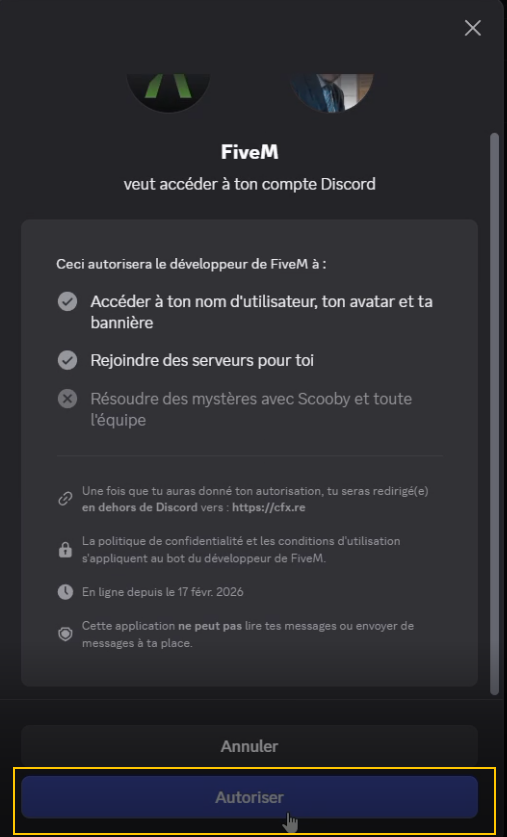
- Upon launch, FiveM will automatically detect the running Discord client and prompt an authorization window: "FiveM wants to access your Discord account".
- Click the blue Authorize button (Autoriser) to approve the link:
Verification: Inside FiveM, navigate to Settings > Account and confirm that your new Discord username appears under User Identifiers.