
1. Error Overview #
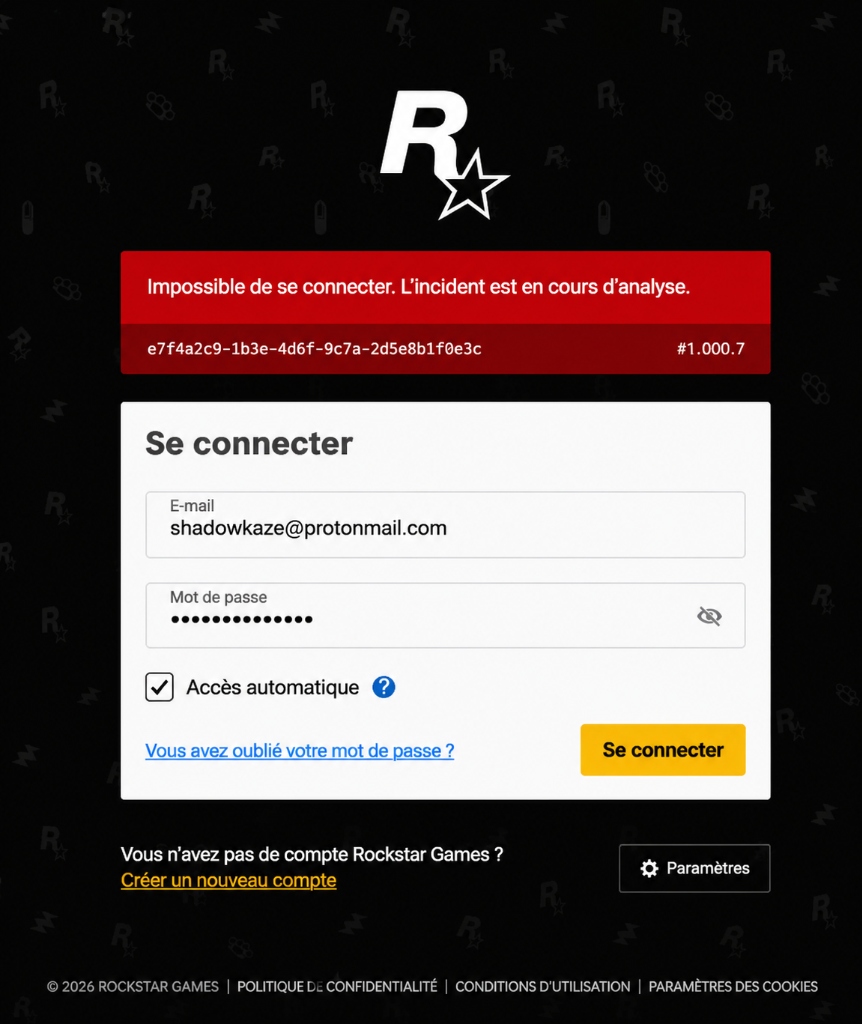
When attempting to sign in to the Rockstar Games Launcher, a red top banner displays error code #1.000.7 with an incident UUID:
2. IP Address & Residential VPN Fix (Primary Cause) #
In 90% of cases, error #1.000.7 is caused by Rockstar's anti-bot firewall (Cloudflare/Akamai) flagging your current IP address (frequent with public VPNs or shared datacenter proxies):
- If you are using a VPN: Disconnect or change to a clean server node. Use a Residential VPN (like RxSpoofer Residential VPN) which provides ISP-assigned residential IPs that bypass Rockstar's proxy detection.
- If you are on your home connection: Restart your Internet router/modem to trigger a fresh dynamic IP assignment from your ISP.
- Temporary verification: Test connecting through a mobile 4G/5G hotspot to instantly confirm if your home IP was temporarily rate-limited.
3. Clear Rockstar Games & Social Club Cache #
Old or corrupt authentication tokens stored locally prevent the launcher from re-authenticating with the Social Club backend:
- Close Rockstar Games Launcher completely (check Task Manager to ensure
Launcher.exeandRockstarService.exeare terminated). - Press Win + R, type
%localappdata%and press Enter. Delete the folder named Rockstar Games. - Press Win + R, type
%userprofile%\Documents\Rockstar Gamesand delete the Social Club folder.
You can also run this command in PowerShell to clean all Rockstar caches at once:
Stop-Process -Name "Launcher","RockstarService" -ErrorAction SilentlyContinue
Remove-Item -Recurse -Force "$env:LOCALAPPDATA\Rockstar Games" -ErrorAction SilentlyContinue
Remove-Item -Recurse -Force "$env:USERPROFILE\Documents\Rockstar Games\Social Club" -ErrorAction SilentlyContinue
4. Flush DNS & Reset Network Stack #
Flush your DNS resolver cache to clear outdated Social Club authentication endpoints:
- Open Command Prompt (cmd) as Administrator.
- Paste and run the following commands sequentially:
ipconfig /flushdns
netsh winsock reset
5. Synchronize Windows Date & Time #
Rockstar authentication uses time-sensitive SSL/TLS security tokens. A desynchronization of even a few seconds will result in error #1.000.7:
- Open Windows Settings → Time & Language → Date & Time.
- Toggle Set time automatically to On.
- Click the Sync now button under Synchronize your clock.